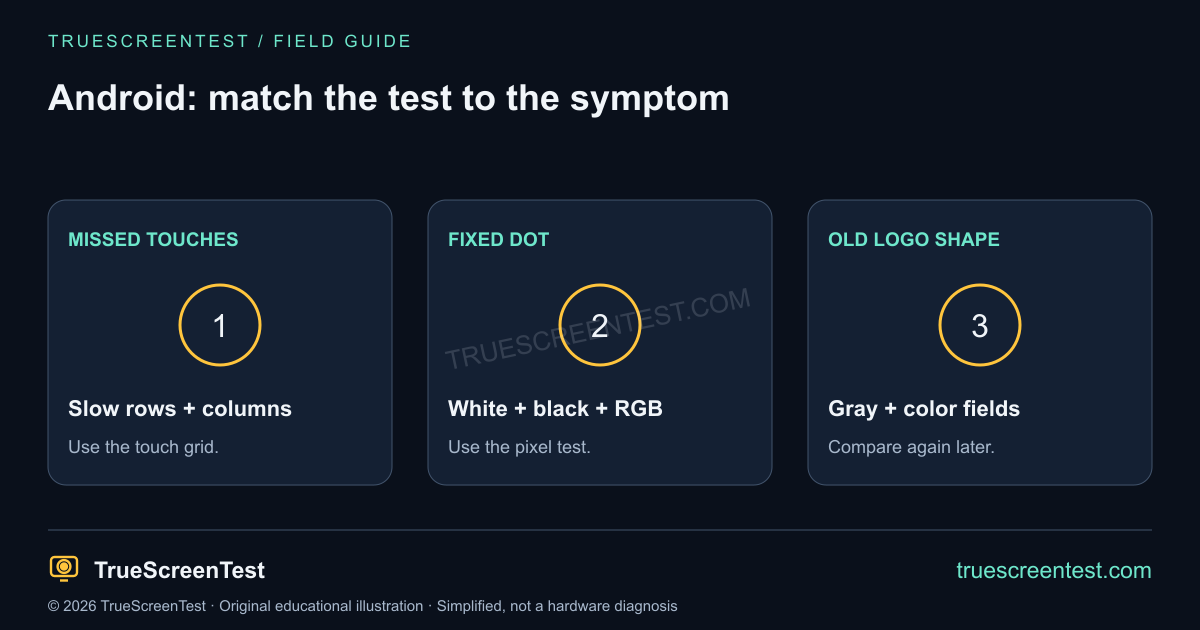
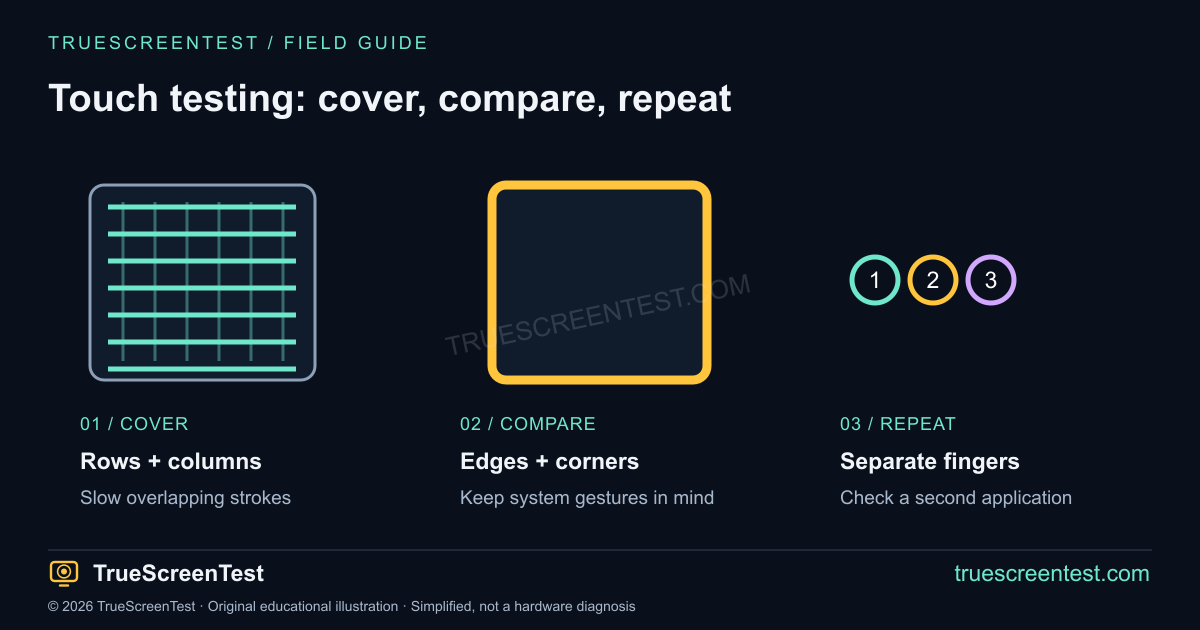
Start here: Open the touch screen test, clear the canvas, set the device down and keep your hands away. New touch marks are evidence that the browser received input; they do not identify the cause. Compare one condition at a time and repeat in another application.
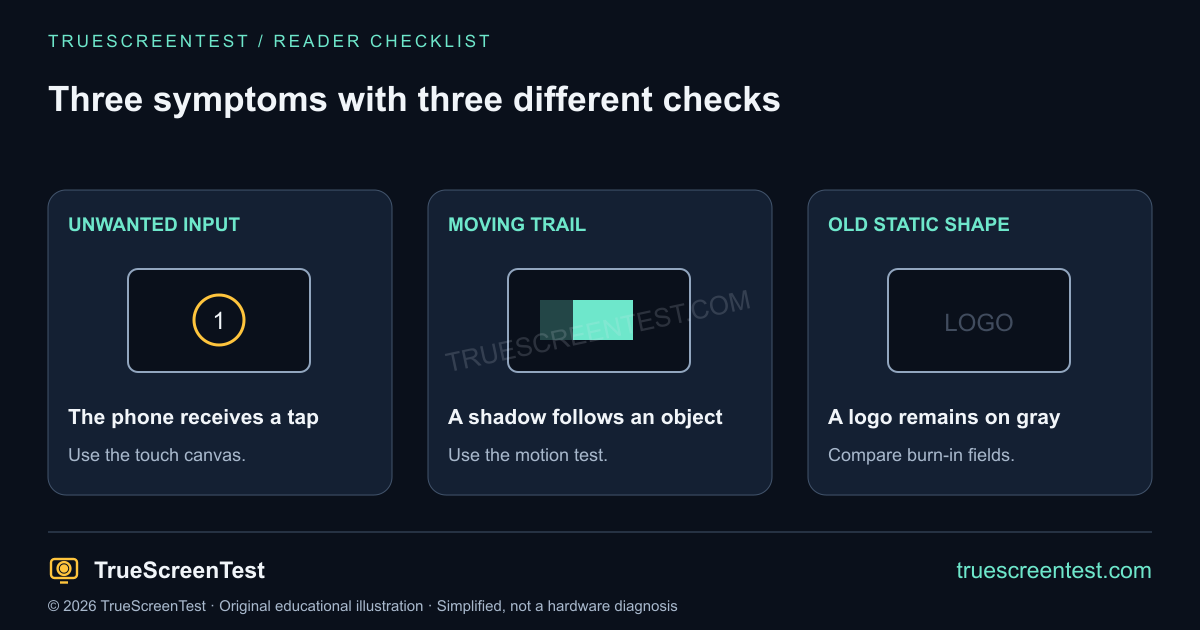
First, decide whether this is input or an image problem
A phone opening controls without your finger is an unwanted-input problem, often called ghost touch. A dark trail following a moving object is monitor ghosting. An old keyboard shape still visible on gray is a retained-image concern. Those observations lead to different checks. The moving-target test cannot tell you why a phone types by itself, and a touch grid cannot inspect OLED wear.
Also check whether the screen responds slowly rather than inventing taps. Several delayed actions can arrive together after an app freezes, which feels different from a fresh tap appearing on an idle phone. Describe the sequence in ordinary words: “the page scrolls while I’m not touching it” is more useful than assuming the digitizer has failed.
Run a short hands-off touch test
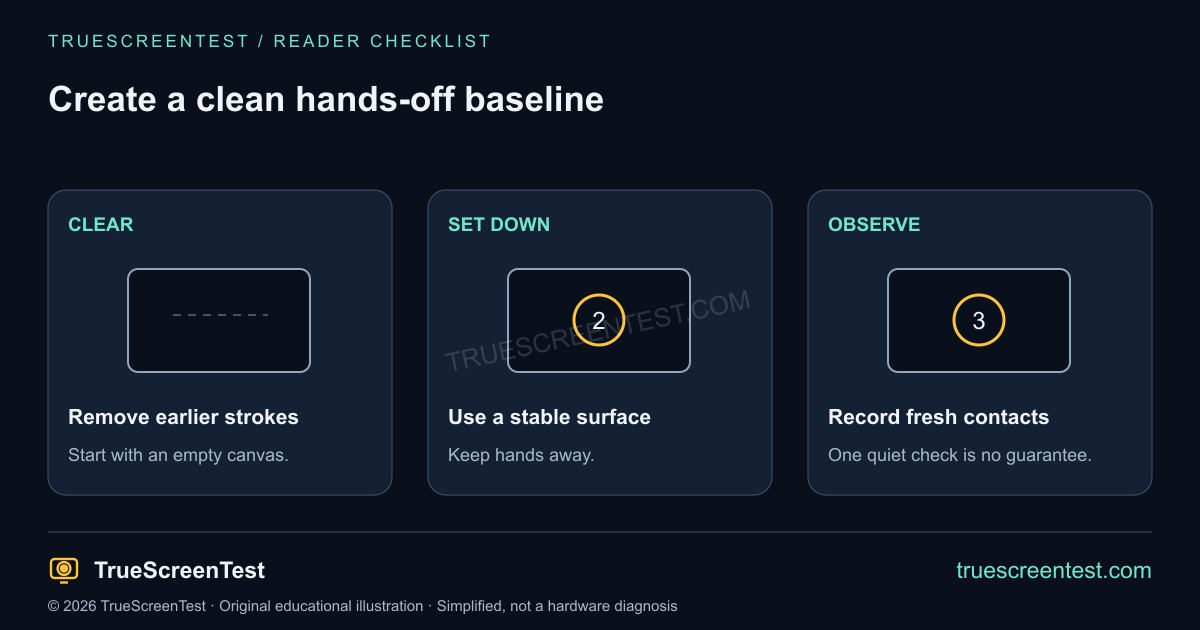
Place the device on a stable surface where neither its case nor the charging lead pushes it around. Open the browser touch test, select Draw and press Clear. Watch the panel briefly without touching it. If a mark appears, note its position and whether the active-contact count changes. The page can only record contacts delivered to its test area; an operating-system gesture or a tap somewhere else may not appear there.
Now draw a few slow lines yourself, then stop. This gives you a reference for how normal input looks and where your finger left the screen. Clear again before the next comparison. Avoid spending the whole session chasing a single intermittent mark: a clean minute cannot rule out a problem that only happens occasionally.
Change charging and surface conditions separately
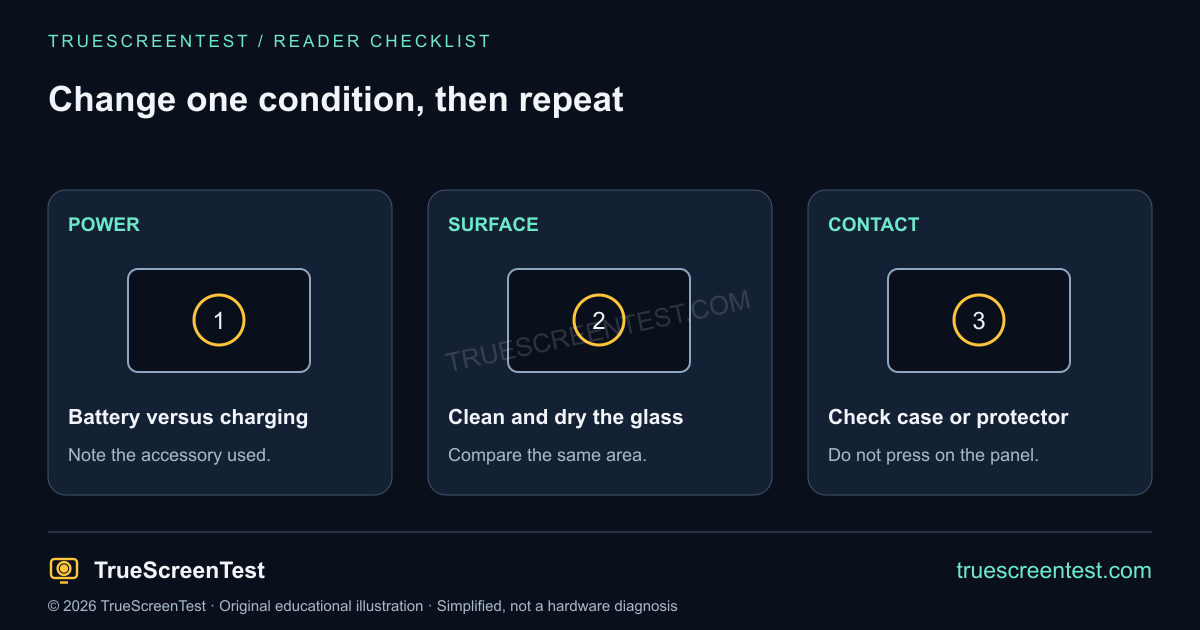
If it happens while charging, disconnect the accessory and repeat on battery. If the behavior changes, record that connection rather than declaring the charger guilty after one attempt. A cable, outlet, accessory or the device may need further checking. Use accessories appropriate for the device, and follow the manufacturer’s instructions if anything is damaged.
Clean and dry the screen, then repeat. Check for a case edge or a lifting protector pressing against the glass. Ask before removing someone else’s protector, and avoid peeling anything from cracked or damaged glass. Do not use force, heat or pressure to make a test pass. Apple’s intermittent-touch checklist includes restarting, cleaning, disconnecting accessories and checking cases or protectors; use the relevant maker’s guidance for your model.
Keep a simple pair of observations: same browser and orientation on battery, then the same conditions with the usual accessory if it is safe to use. Changing five settings at once may improve the symptom, but it leaves you unable to explain which change mattered.
Compare another app before blaming the panel
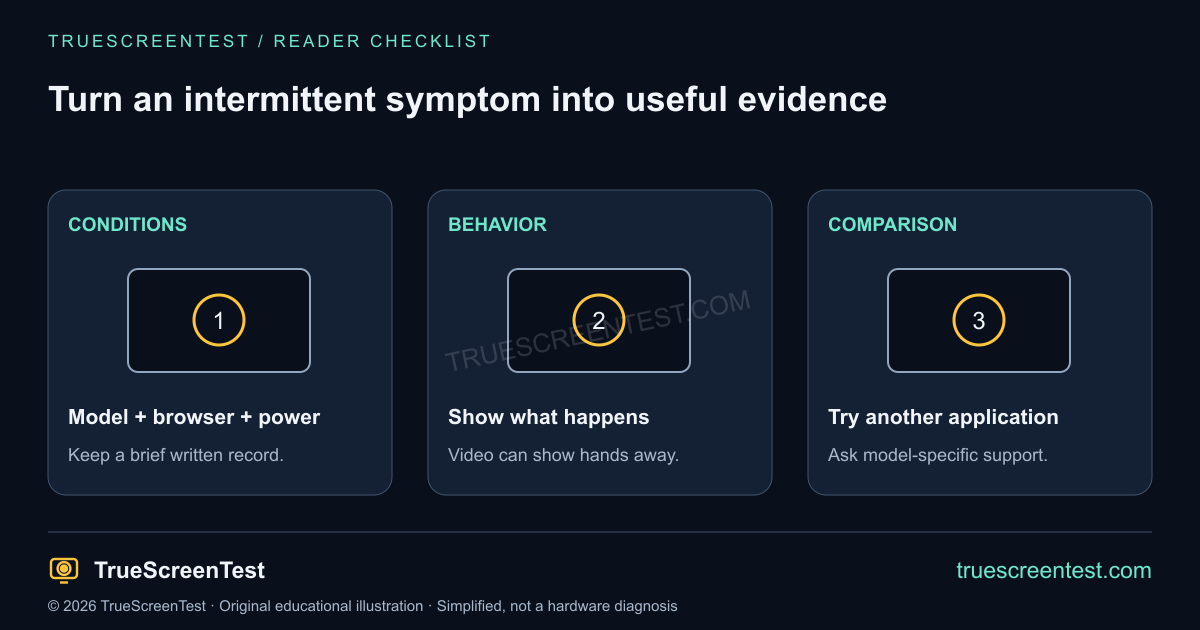
Use a drawing or note app to compare the same part of the screen. If the behavior happens only on one website or in one application, note that. Accessibility features, gesture settings, connected input devices and app behavior can change how input is handled. Do not disable an accessibility aid you depend on just to make a comparison; record that it is enabled and use device-specific support advice.
On Android, the Android display checklist explains how to pair browser checks with manufacturer diagnostics where available. On a touchscreen laptop, distinguish a finger, stylus, mouse and trackpad: they are separate input paths. Our test labels the source it receives so a mouse demonstration is not mistaken for a successful finger test.
Check whether the same area also misses your real touches
Ghost input and missed input can occur in the same session, but neither proves the cause of the other. Draw overlapping rows and columns across the suspect area. Rotate the device and note whether a gap stays with a physical strip of glass or moves with the page. Follow the full touch-coverage guide for the grid and multi-touch steps.
If the concern is a mark you can see after Clear, compare the pixel test or gray-screen fields. A picture-quality issue can remain visible while touch response is normal. Keeping these descriptions separate helps a support technician understand what you have already checked.
Make the next support conversation easier
A useful note fits in a few sentences: device model, software/browser, charging state, orientation and what repeated. A short video showing hands away from the screen may explain the symptom better than a screenshot of an old scribble. Remove private messages and account details from anything you share.
If the behavior keeps returning across apps after ordinary cleaning and a restart, use the manufacturer’s service route. A damaged screen needs model-specific assessment. The purpose of this checklist is to replace “it feels haunted” with a reproducible observation—not to promise a home repair or certify the hardware.
Questions that come up during a ghost-touch check
Does no mark on the canvas mean the phone is healthy?
No. The symptom may be intermittent, outside the test area or intercepted by the system. Record what you observed during that session rather than treating a quiet test as a guarantee.
Can the test stop ghost touches?
No. It displays input the browser receives. It cannot change digitizer calibration, repair damaged glass or identify an electrical fault.
Is this the same as inverse ghosting on a monitor?
No. Inverse ghosting describes motion-image artifacts, not unwanted taps.