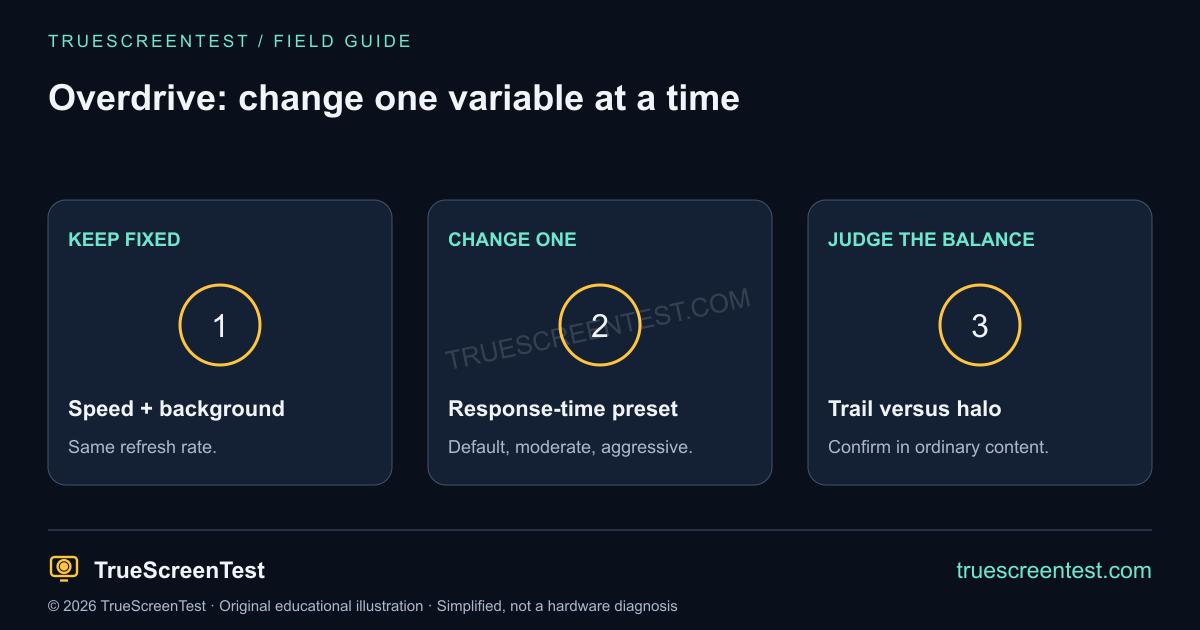
Quick answer: Keep target speed and refresh rate fixed, then compare one overdrive preset at a time. A trailing smear suggests slow transitions; a bright or dark contrasting halo can indicate overshoot. Choose the cleanest result at the refresh rates you actually use, not simply the preset with the most aggressive name.
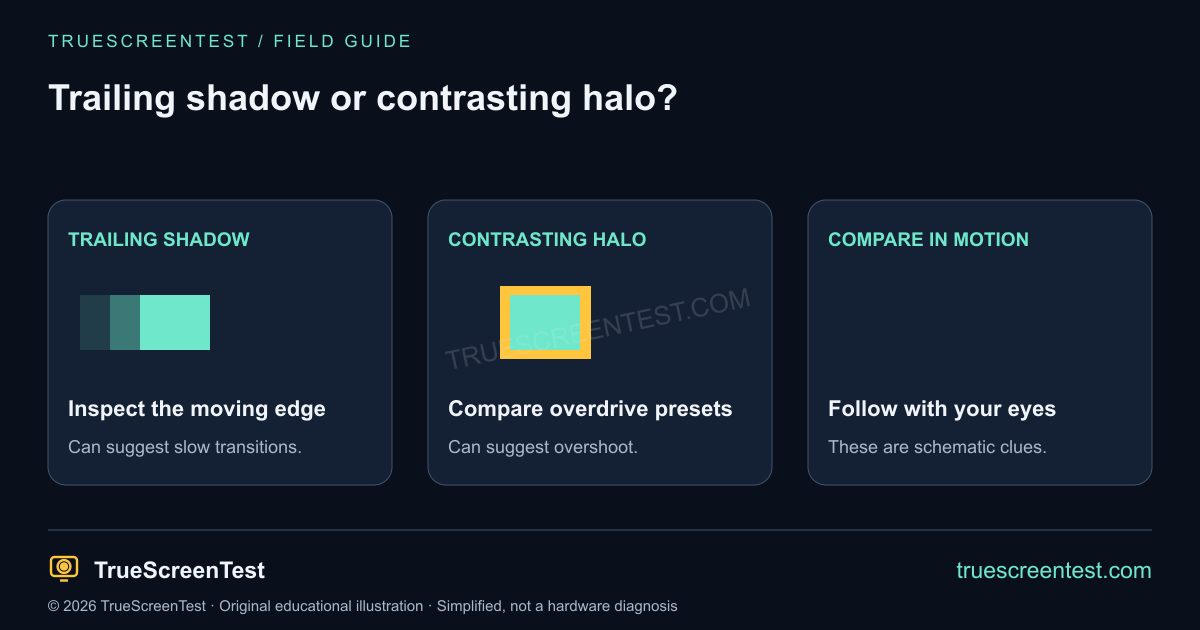
What ghosting and inverse ghosting look like
Ordinary ghosting is a remnant behind a moving edge while pixels transition between levels. It may look like a dark smear on a dark background or a faint duplicate following the object. The appearance varies with the colors being crossed, so a panel can look clean on one background and show a longer trail on another.
Inverse ghosting is commonly used to describe a contrasting edge or halo caused by overdrive overshoot. A monitor uses overdrive to accelerate pixel transitions, but an aggressive setting may push a transition beyond the intended level. The resulting halo can be more distracting than the blur the setting was meant to reduce. A browser pattern helps you compare what you see; it does not directly measure the electrical drive or response-time curve.
Run a controlled monitor ghosting test
Open the online ghosting test on the monitor being checked. Start at the default 960 pixels per second, leave the browser in the foreground and follow the target with your eyes rather than staring at a fixed point. Compare the dark, middle and light tracks. Record the selected refresh rate, overdrive preset and target speed before changing anything.
Pause the animation once. If a shape remains when the target stops, it may be part of the rendered image or a separate display artifact rather than a motion-only trail. Then resume at the same speed and compare the next monitor preset. Do not change speed, brightness and overdrive together: you would not know which adjustment caused the difference.
Choose a response-time preset without chasing the label
Controls may be called Overdrive, Response Time, Trace Free or a manufacturer-specific name. Read the exact model’s manual for what each preset does and whether an adaptive setting is available. “Extreme” or “Fastest” is a setting name, not a guarantee of the best-looking motion. Compare a moderate option against the default and strongest options, then return to ordinary content.
If the faster option reduces a smear but adds an obvious light outline, a less aggressive setting may be a better balance. Keep the change reversible. You do not need to overclock the screen or create unsupported timings to inspect motion. If you cannot find the setting, record the model and use the manufacturer’s support instructions. For example, the ASUS VY279HF manual describes Trace Free as an overdrive control; its available options should not be assumed to match another model.
Why refresh rate and frame rate still matter
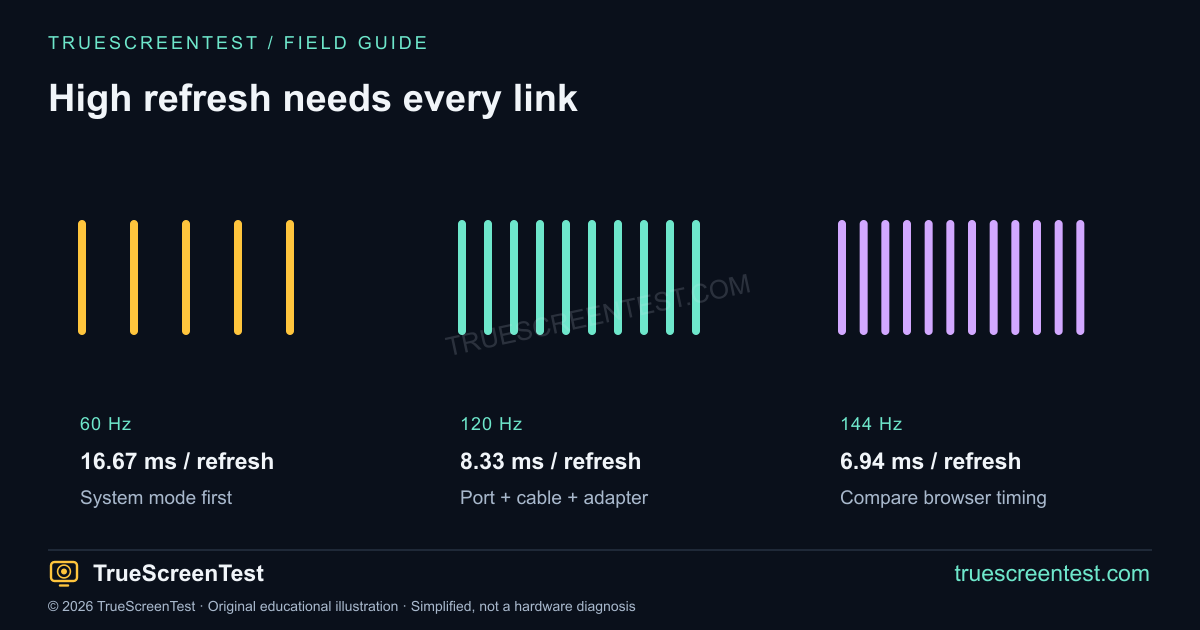
A high output refresh rate provides more display updates, but it does not guarantee that every pixel transition finishes cleanly or that a game renders equally quickly. Use the refresh rate test to compare browser frame timing with system display settings. If a high-refresh monitor is configured at 60 Hz, follow the existing 144 Hz monitor stuck at 60 Hz guide first.
With variable refresh, the rate may change with the game. A preset that looks acceptable at a monitor’s maximum can behave differently at a lower rate. If the manual allows it, compare representative supported rates separately and label each result. Do not assume that a browser value is a laboratory measurement of response time, a game’s frame rate or end-to-end input latency.
Motion blur is not always a slow-pixel fault
How your eyes track an image and how frames are held on the screen can contribute to perceived blur. Games can add their own motion blur, temporal effects and upscaling artifacts. If a trail appears in one game but not in a simple browser target, compare that game’s relevant settings one at a time. A clean browser test does not certify every game or every transition on the panel.
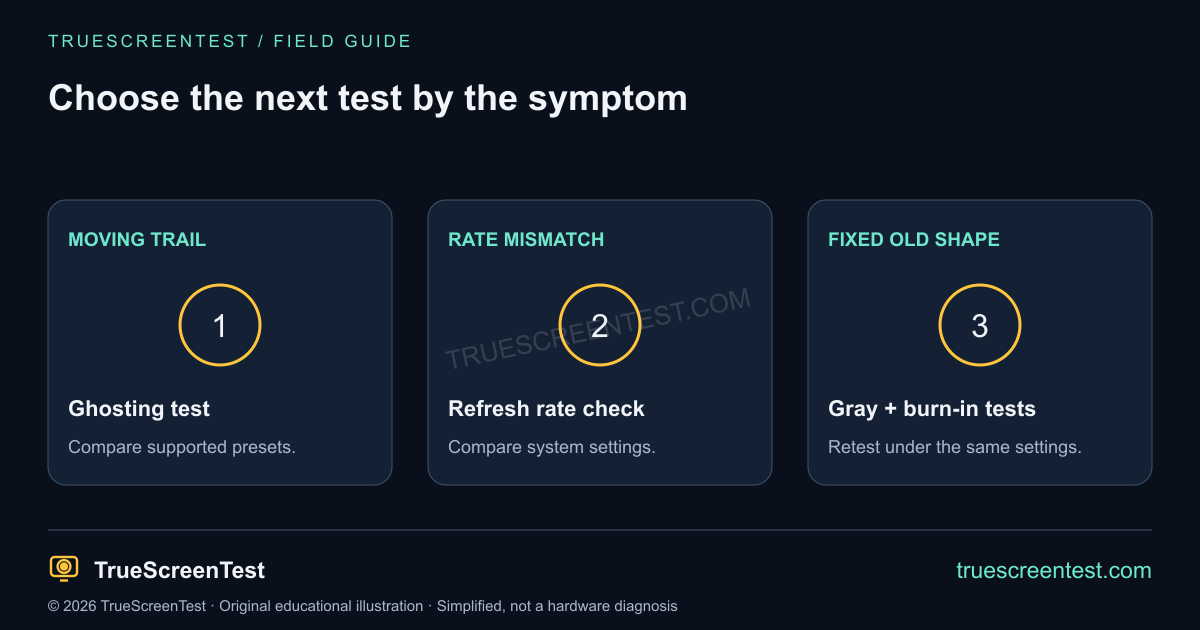
Also keep the symptom separate from a retained static shape. A faint taskbar visible after switching to a gray field belongs in the gray screen uniformity check and burn-in test. Ghost touches on a phone refer to unwanted input; the touch screen test checks that entirely different behavior.
Keep a useful comparison record
Write down the monitor model, input, selected refresh mode, preset and target speed. A phone video can add rolling-shutter or exposure artifacts, so do not treat it as an objective response-time result. Compare with your eyes and include normal-use impact when asking support for help. A repeatable difference between presets is more informative than a single blurry photograph.
Ghosting questions
Is this a UFO test?
This site uses its own moving-target test. The useful goal is the same kind of visual comparison: hold conditions fixed and inspect trails. It is not a third-party benchmark or a certification.
Can a website fix monitor ghosting?
No. It can show motion patterns that help you compare settings. Hardware capabilities, monitor processing and the source content determine what you see.
Should I always disable overdrive?
No. Compare the supported presets on your model. A moderate setting may reduce trailing without a distracting halo; the best balance depends on the panel and the refresh rate.