Quick answer: Clean and unplug the phone, draw across the touch grid, inspect solid colors for pixel dots, then compare gray fields for retained shapes. Check black-screen edge light only if the phone uses an LCD. Repeat anything suspicious in another app.
Prepare the phone without changing everything at once
Use the phone at a comfortable brightness in the lighting where you normally use it. Wipe the screen with a suitable dry cloth, disconnect charging accessories and restart if an application appears frozen. Check whether a case or lifted protector presses against an edge. If it is someone else’s phone, ask before removing a protector or changing settings. Note the current display mode so you can restore it after the comparison.
Find out whether the exact model uses LCD or OLED. The technology affects how black fields and retained shapes should be interpreted. Do not rely on the brand name alone: different models from the same manufacturer can use different panels. Keep eye-comfort filters and adaptive brightness in mind because they can change color or brightness between comparisons.
Check touch input with slow overlapping strokes
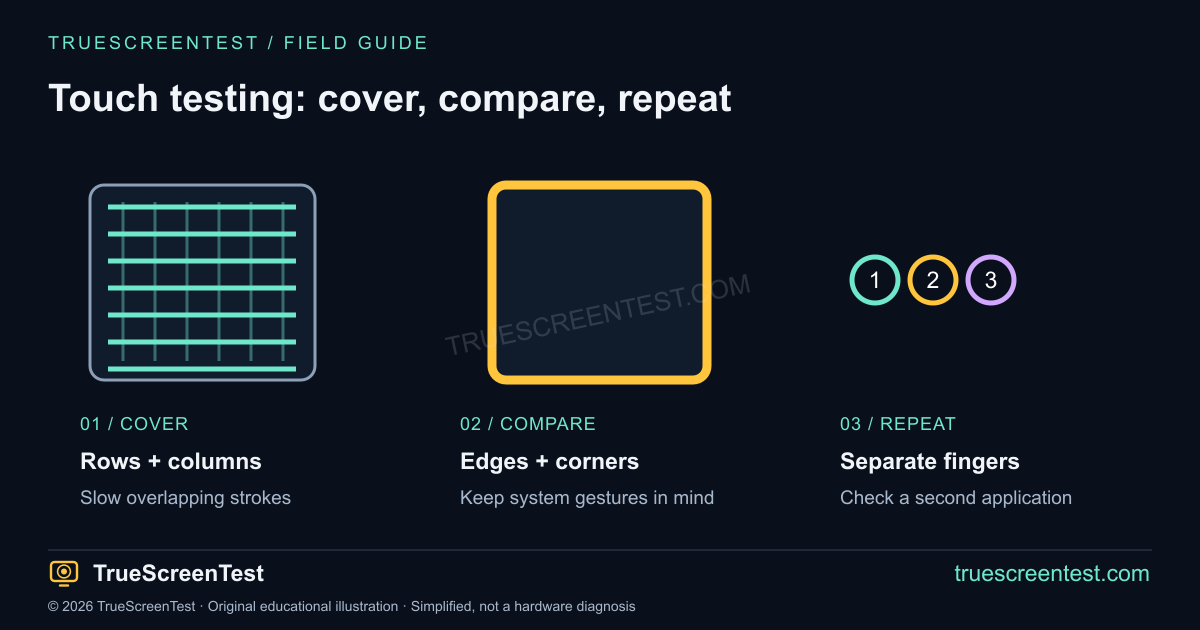
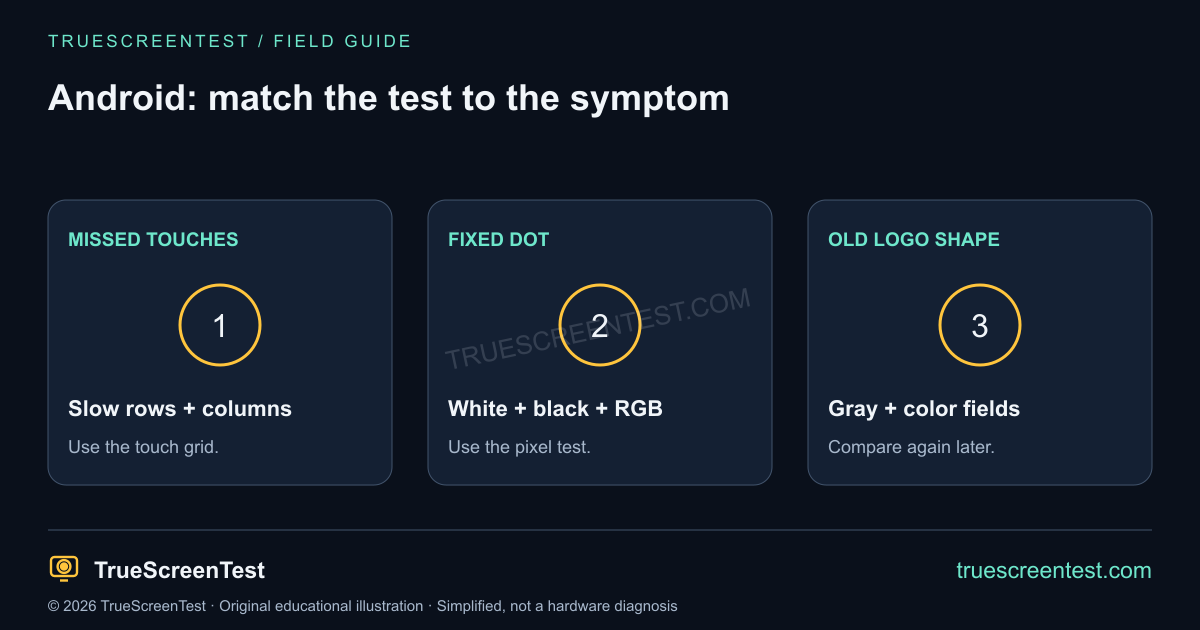
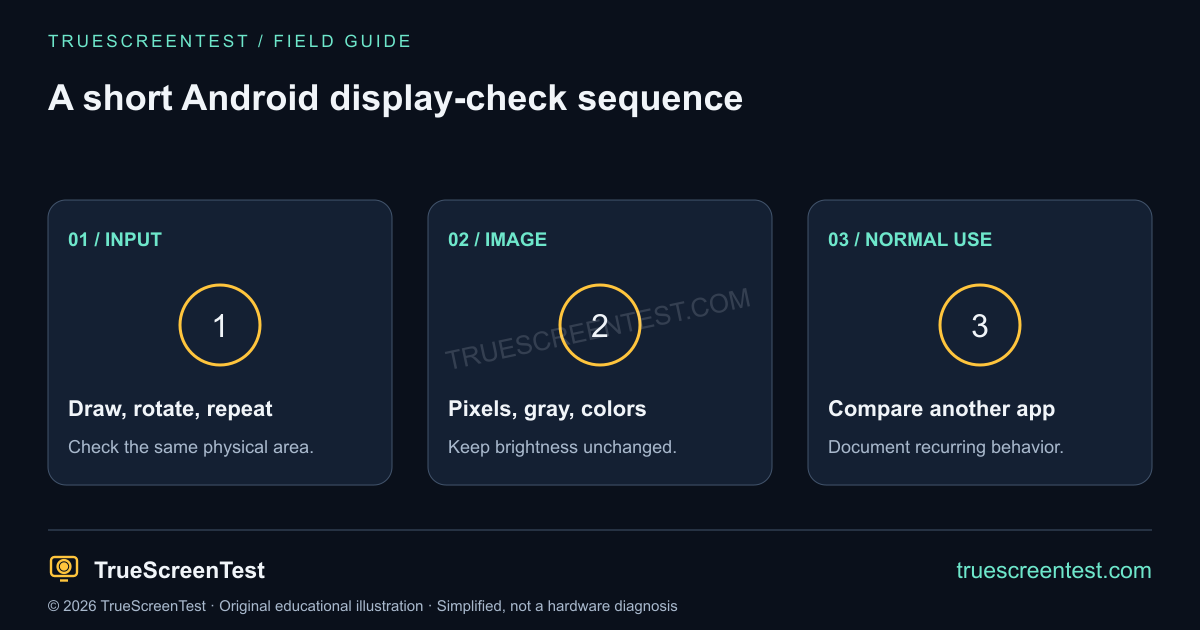
Open the touch screen test in the phone browser. Start fullscreen, draw horizontal rows across the panel, then repeat vertically. Trace inside each edge and around the corners. If a line breaks, repeat over that same position slowly. Rotate the phone and compare the physical position rather than just the location within the webpage.
Switch to multi-touch and place two, three and then several fingertips apart. A low count can reflect browser limits, accessibility behavior or palm rejection, so it does not establish a failed digitizer. Android’s navigation gestures can also intercept the extreme edges. For a fuller explanation, use the touchscreen inspection guide. Do not press harder to make an unresponsive strip work.
Inspect pixels, gray fields and retained images
Open the dead pixel test and look at white, black, red, green and blue. Write down any fixed point that differs from its surroundings. Dust and reflections are common false alarms; a camera photograph is more useful for documenting a physical dot than a screenshot viewed on another device.
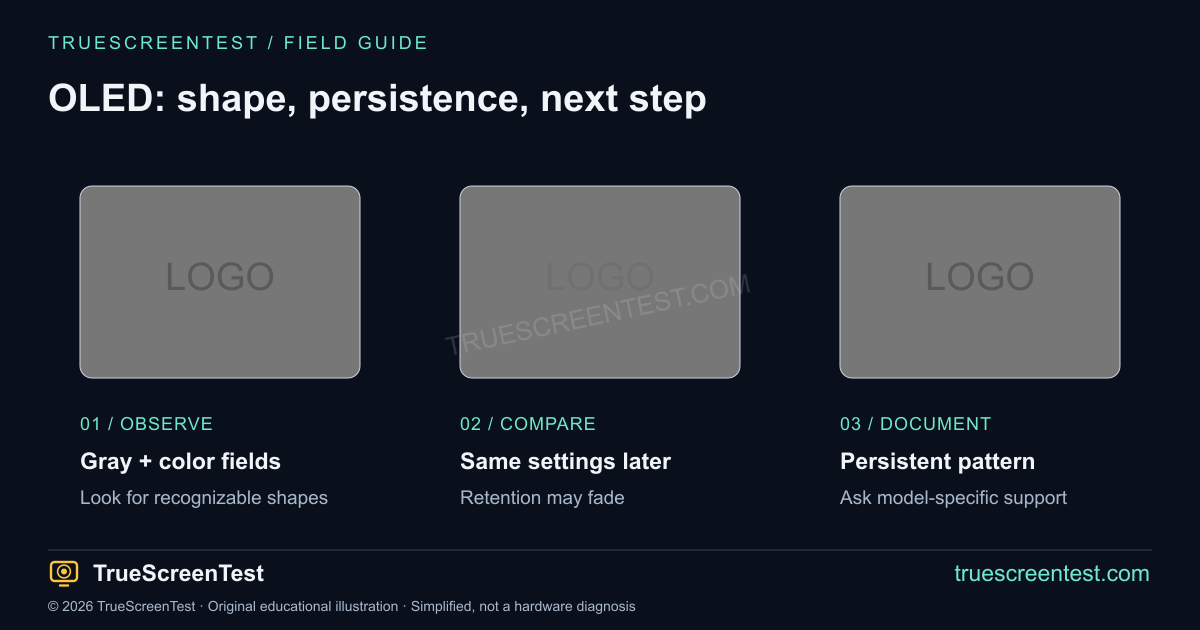
Next use the gray screen test. On an OLED phone, inspect where keyboards, status icons and navigation controls often sit. A recognizable old shape is worth documenting, but a single inspection cannot separate temporary retention from permanent wear. Compare the burn-in color fields and retest later using the same brightness. The OLED burn-in guide explains those limits.
Test screen bleeding on an Android LCD
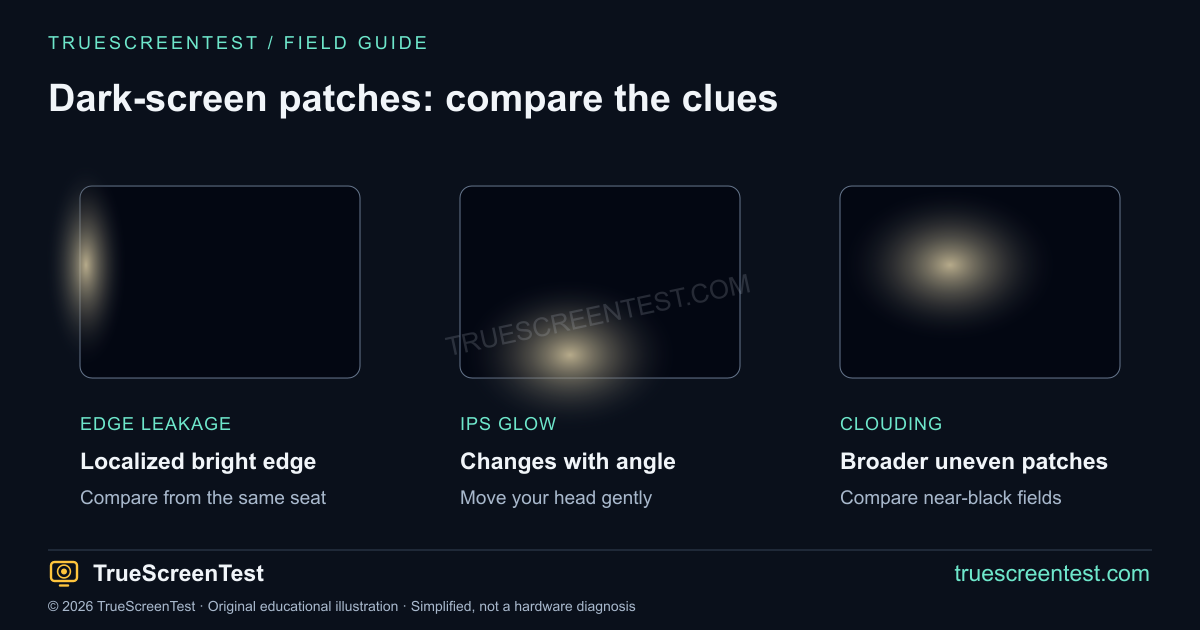
For an LCD model, use the backlight bleed test at your normal brightness. Compare black and near-black gray from your usual viewing angle, then move your head. Angle-dependent sheen and a fixed bright edge are different observations. Repeat with ordinary content and ordinary room light before deciding whether it affects the phone’s use.
An OLED panel has no LCD backlight to leak. On OLED, a black field may switch pixels off and hide differences that are visible on gray. Avoid calling every dark-screen patch “bleeding.” Read the guide to glow and light leakage if the behavior is unclear. A long-exposure camera image can make a mild patch appear much stronger than it looks to your eyes.
Use manufacturer diagnostics for a second opinion
On supported Galaxy models, Samsung Members includes phone diagnostics and a touch-screen check. Menu names vary with version and region. Follow the instructions in Samsung’s display troubleshooting guide rather than assuming a dialer code works on every phone. Other manufacturers may provide different diagnostic or support options.
A browser checklist cannot calibrate the panel, verify a replacement part’s authenticity, measure color accuracy or determine whether the phone was repaired. If the same symptom appears across apps and a manufacturer test, keep that evidence for support. It still does not identify the exact component that needs replacement.
What to record before buying or arranging a repair
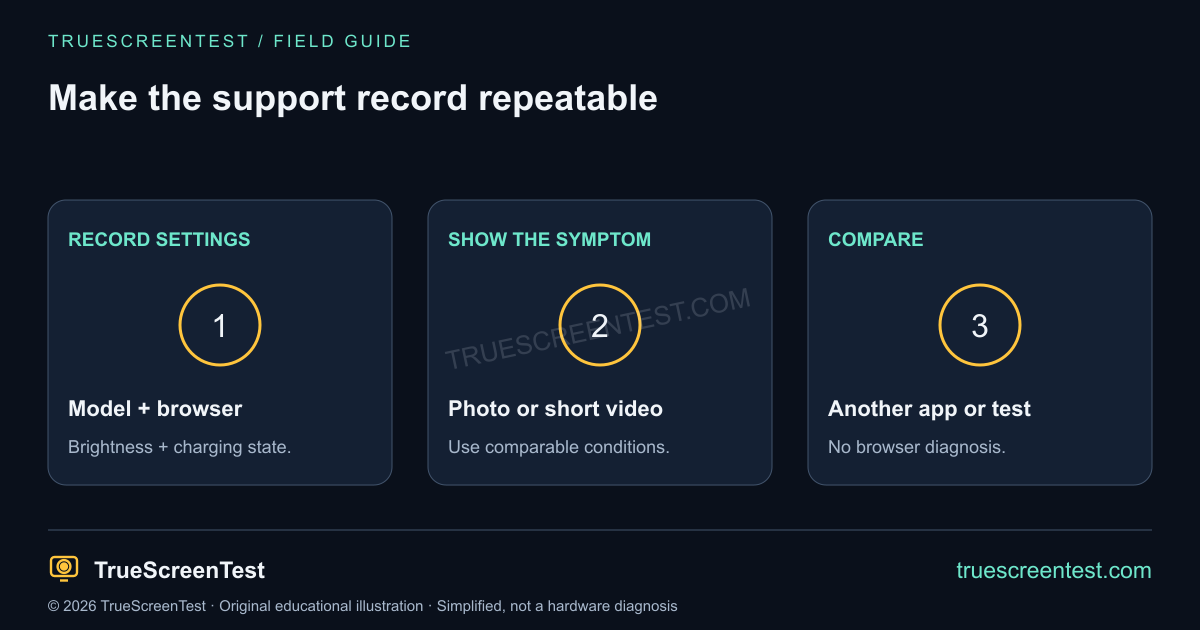
Save the exact model, browser, brightness, charging state and orientation. For missed touches, a short video showing a finger crossing the gap is useful. For a fixed dot or retained logo, take a photo that matches what your eyes see and identify the test background. Ask a used-phone seller about return terms if you cannot repeat the inspection over time. A clean five-minute result cannot rule out an intermittent fault or predict future panel wear.
Android screen-testing questions
Can this test run without installing an app?
Yes. The browser tools run on the page and do not need an account. Manufacturer diagnostics are a separate optional comparison.
Does this work with Samsung, Pixel and other Android phones?
The browser checks use common web features, but fullscreen behavior, gesture areas and touch limits vary. Follow the model’s own instructions for built-in diagnostics.
Can a test repair a screen or remove permanent burn-in?
No. These patterns help reveal and document a symptom. They cannot reverse wear or repair damaged hardware.