A useful short check: look at ordinary content first, compare gray and solid colors briefly at comfortable brightness, then return to the content you actually use. Record recognizable persistent shapes. A browser cannot calculate “OLED health,” estimate remaining panel life or guarantee that a second-hand screen is fault-free.
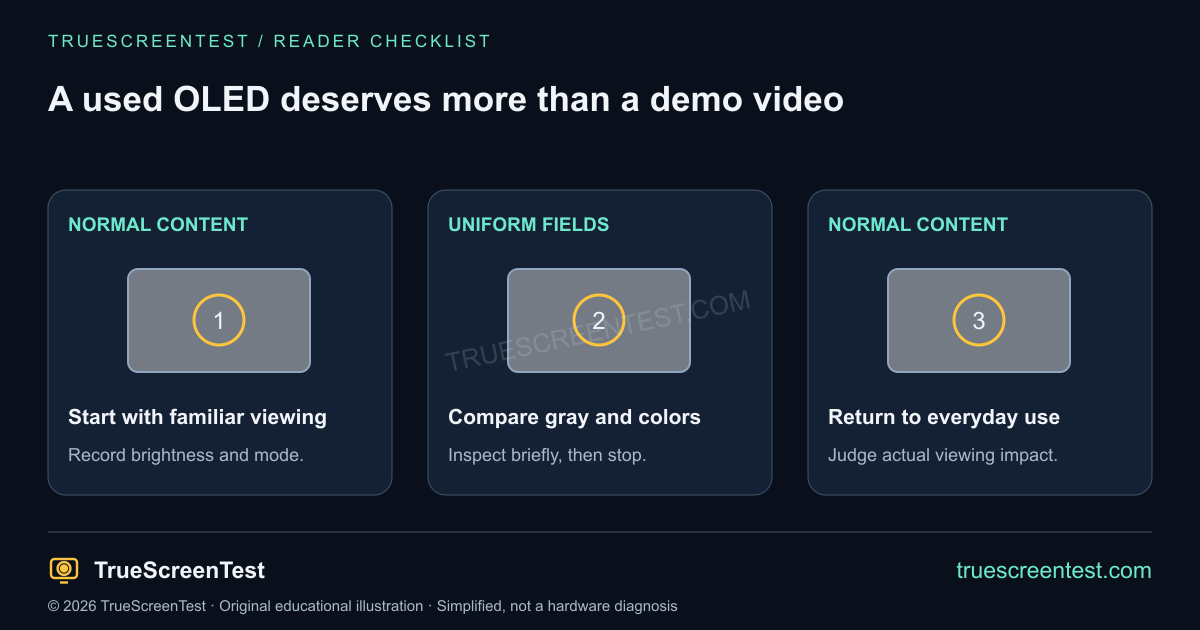
Agree on the check before changing the seller’s settings
Ask to see the exact model and the input or device you will use. A television, a desktop monitor and a phone have different display-care features and different ways to open a test pattern. Agree on a short inspection rather than leaving a field running while discussing the price. If you change brightness or picture mode, note the original value and restore it afterward.
Start with something familiar: a document, a film scene, a webpage or a game menu. That establishes how the screen looks at a normal distance. You are buying a display to use, not a photograph of an extreme test. Also check the seller’s return arrangement before you reach the point where you feel rushed to decide.
Use gray to look for a recognizable old shape
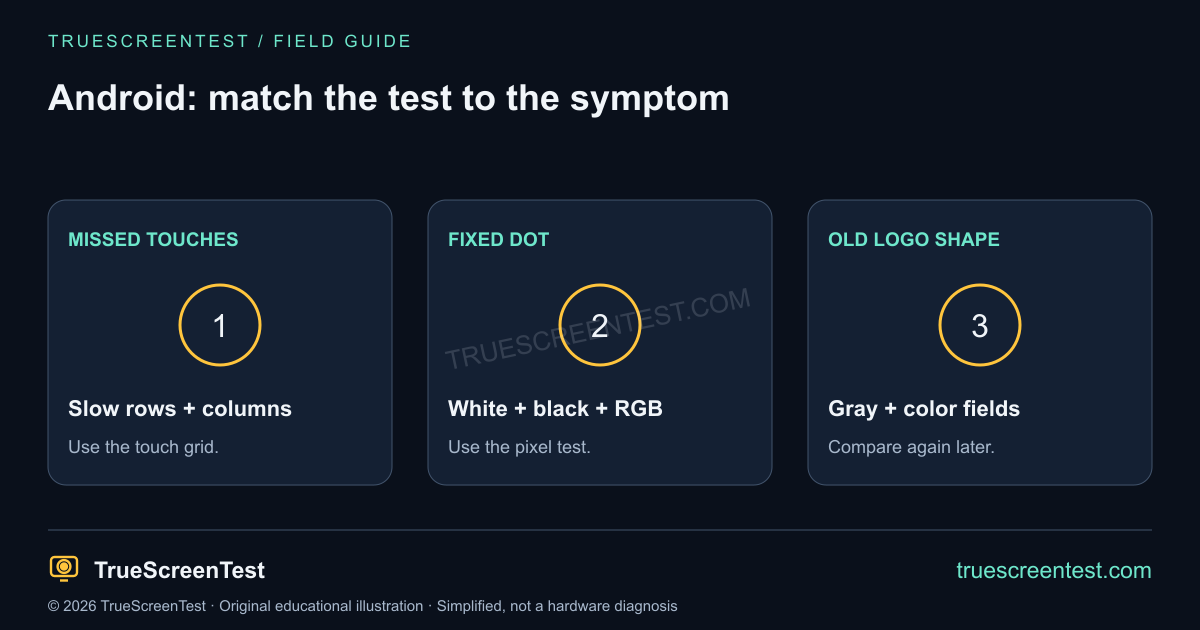
Open the gray screen test and start with mid gray. Look at the places where fixed controls often sit: a phone’s status and navigation bars, a monitor’s taskbar, a television’s channel logo or a game’s interface. Then compare a darker and a lighter field. Keep your seat and display brightness unchanged so the comparison means something.
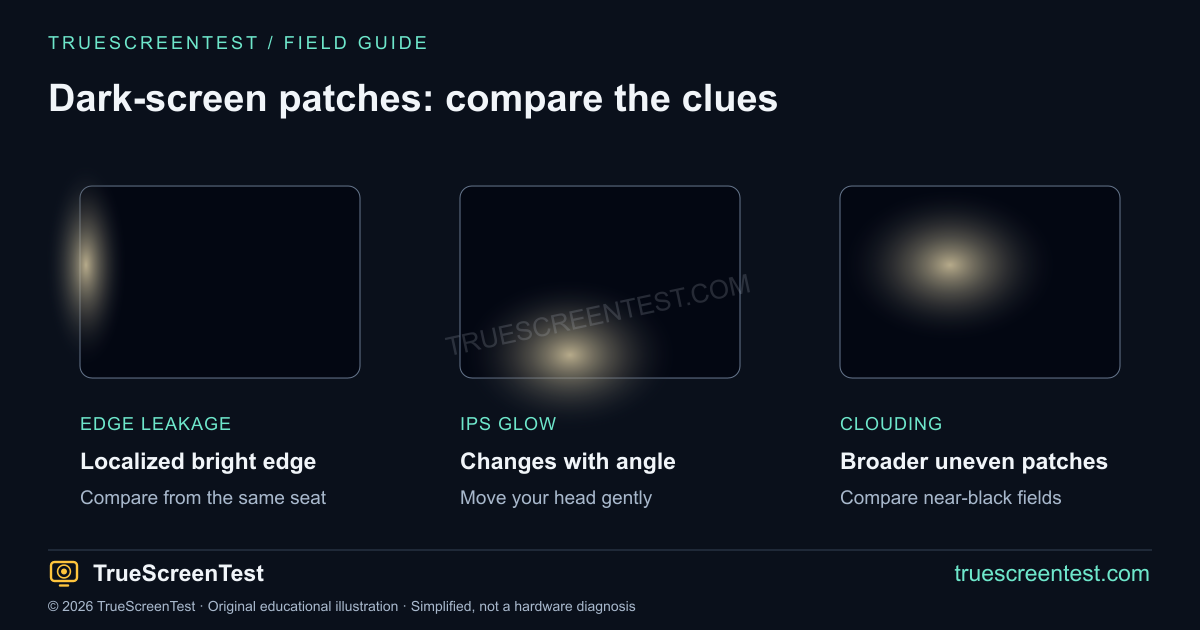
A shape that resembles an old logo is a different observation from a broad tint or faint band. Record it that way. Dark-field uniformity, temporary image retention and camera processing can complicate the picture. Do not label every stripe permanent burn-in after one glance. The OLED burn-in and retention guide explains the difference and the limits of a short inspection.
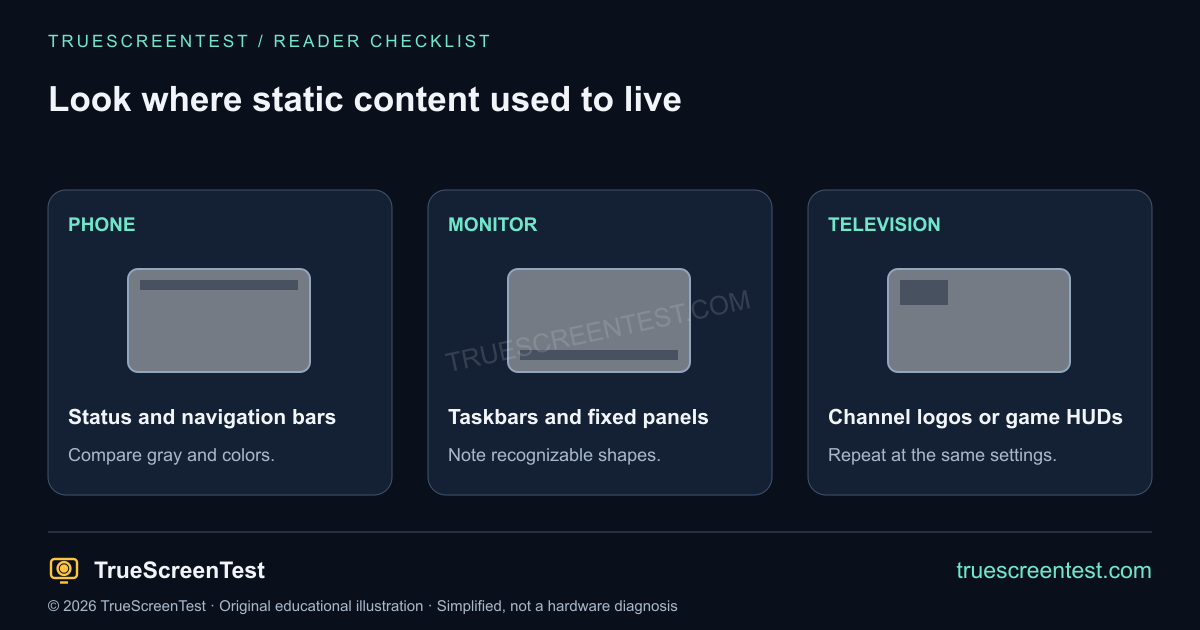
Compare colors, then stop looking at test fields
Use the burn-in test to compare red, green and blue. Note which fields reveal the same shape most clearly. For an isolated dark or bright point, use the pixel test; one dot and a broad taskbar outline should not be described as the same problem.
Now go back to ordinary content. Does the mark distract you while reading a page or watching a scene you recognize? That practical impact matters to your decision. You do not need to run a static image for hours or push brightness to maximum to make a concern legitimate. If you need a test image for a TV browser or USB image viewer, use the plain downloadable gray PNGs and fit the image to the screen.
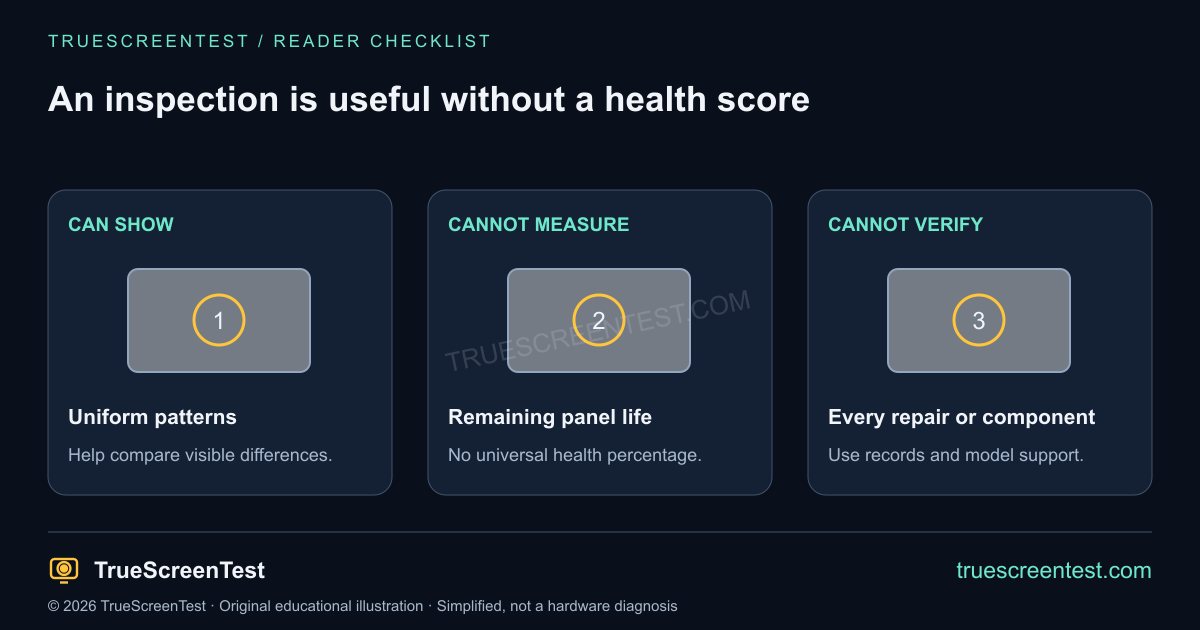
Be careful with a claimed OLED health percentage
A website can show patterns and explain them. It cannot read every panel’s internal compensation history, authenticate replacement hardware, measure accumulated wear or convert a visual check into a reliable percentage of life remaining. Operating-hour information, when a manufacturer exposes it, is context rather than a universal wear score.
A lightly used screen with an unfortunate static layout and a heavily used screen with varied content may have different visible results. A simple hours-to-health formula cannot represent every panel and use pattern. Ask what the seller knows about usage and repairs, but do not substitute that story for the screen you can actually inspect.
Use the manufacturer’s care instructions, not a last-minute repair trick
Some OLED products run maintenance or compensation routines under particular standby conditions. Their names, timing and manual options vary. Do not repeatedly trigger a manual routine because a seller says it will erase any mark before you leave. Ask for the model’s instructions and any relevant service record.
Apple’s OLED display guidance distinguishes temporary persistence from burn-in and recommends sensible brightness and screen-timeout habits for supported iPhones. That is not a universal maintenance schedule for a television. Use the documentation for the exact screen being sold. No flashing web video should be presented as a promise to reverse permanent wear.
Document enough to compare later
If a mark concerns you, photograph the panel using an exposure that resembles what you see. A phone camera’s night processing can make mild dark-field variation look dramatic. Include the test field and the model, and take an ordinary-content photo as well. Keep brightness, viewing angle and lighting consistent if you get another chance to inspect it.
A short purchase meeting may not give you time to determine whether a shape fades. That uncertainty is real. Return terms, a written description of the condition and the manufacturer’s exact warranty coverage are more useful than reassurance that every mark will disappear. Check the policy rather than assuming burn-in is covered because another model offers coverage.
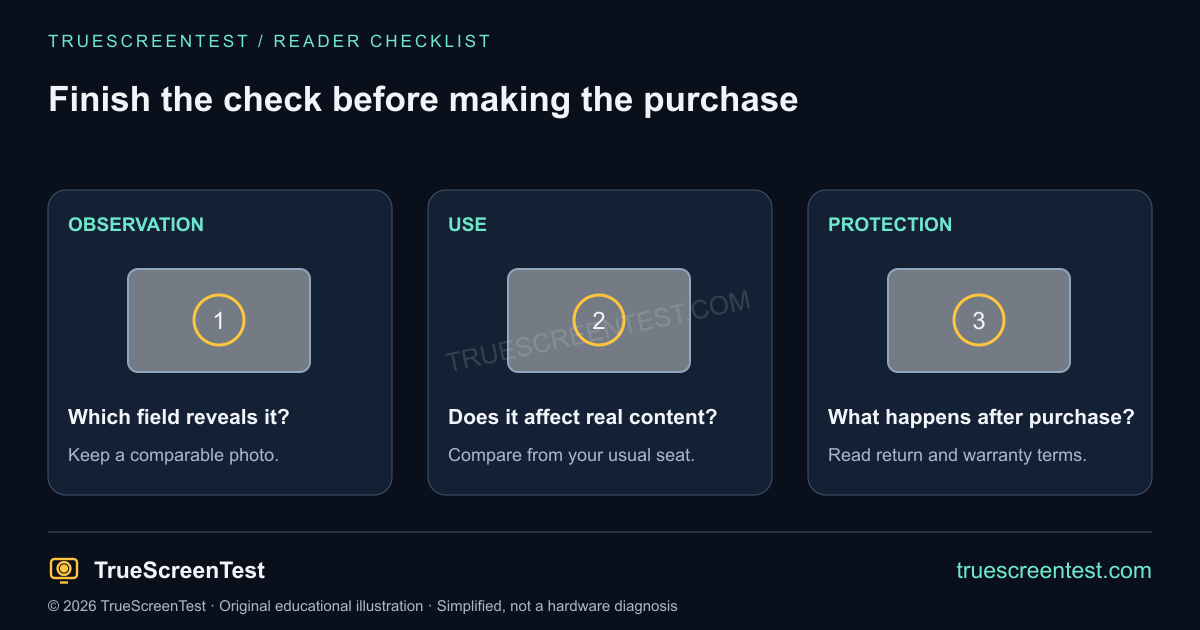
Finish with checks that gray cannot perform
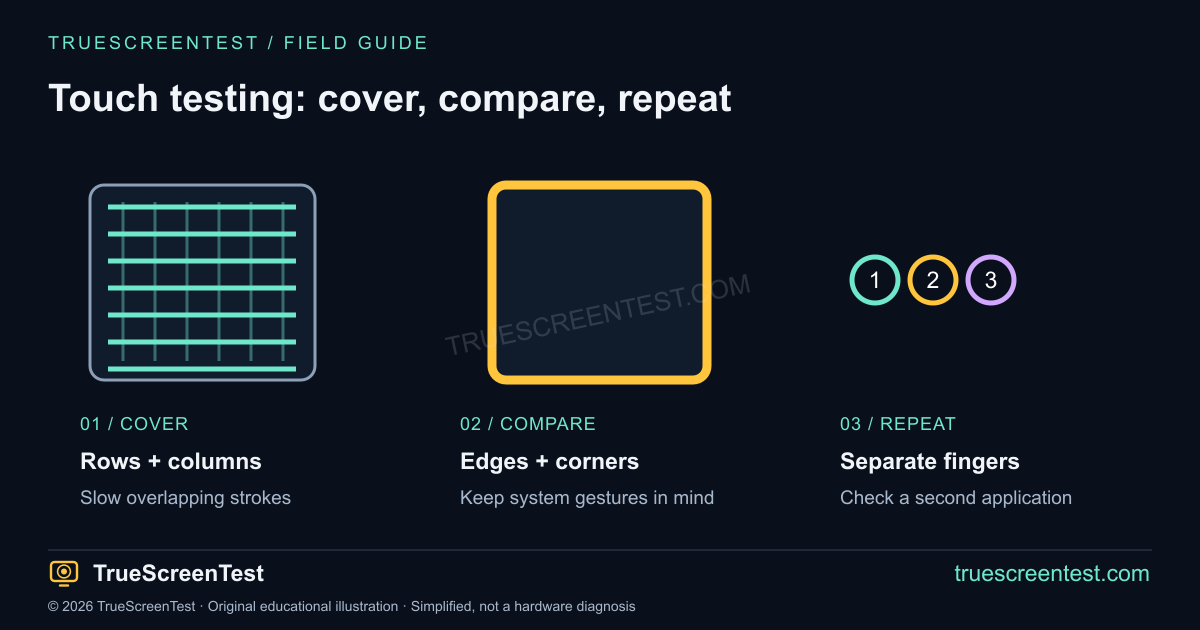
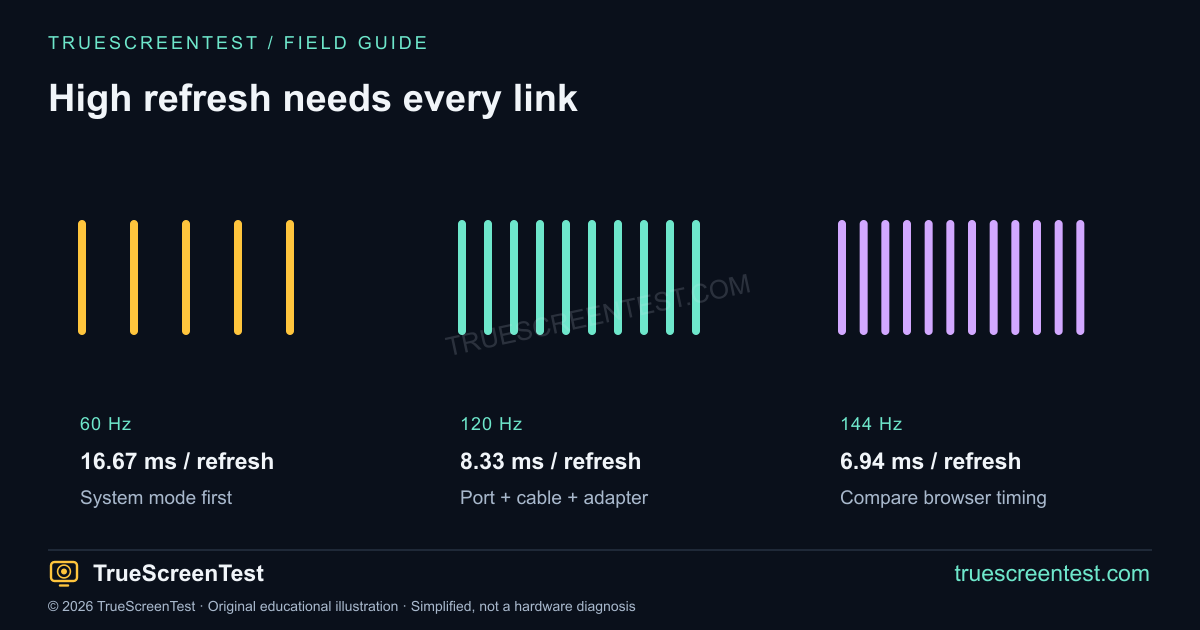
For a phone, test touch response separately using the touch grid and the Android screen checklist where appropriate. For a monitor, confirm that the intended resolution and refresh mode are available; the refresh-rate check and 60 Hz troubleshooting guide help with that comparison. For motion trails, inspect the moving-target test rather than expecting a still image to answer the question.
If a seller will not allow any reasonable inspection or cannot explain a visible mark, you can decline the purchase without proving a component has failed. Decide based on the condition you can observe, the price, the use you need and the protections actually offered—not a perfect-looking demo alone.
Used OLED questions
Can a clean gray field rule out burn-in?
No single shade or brief session can guarantee a flawless panel. Compare several fields and normal content, and retain the limits of the check.
Should I buy a screen with a faint mark that only a test reveals?
That depends on its impact, the price and the return terms. The test supplies observations, not a pass/fail standard for every buyer.
Is this a hardware burn-in stress test?
No. This is a brief visual inspection for retained images and display quality. It does not stress-test a CPU, memory or graphics card.